

File Transfer#
Overview#
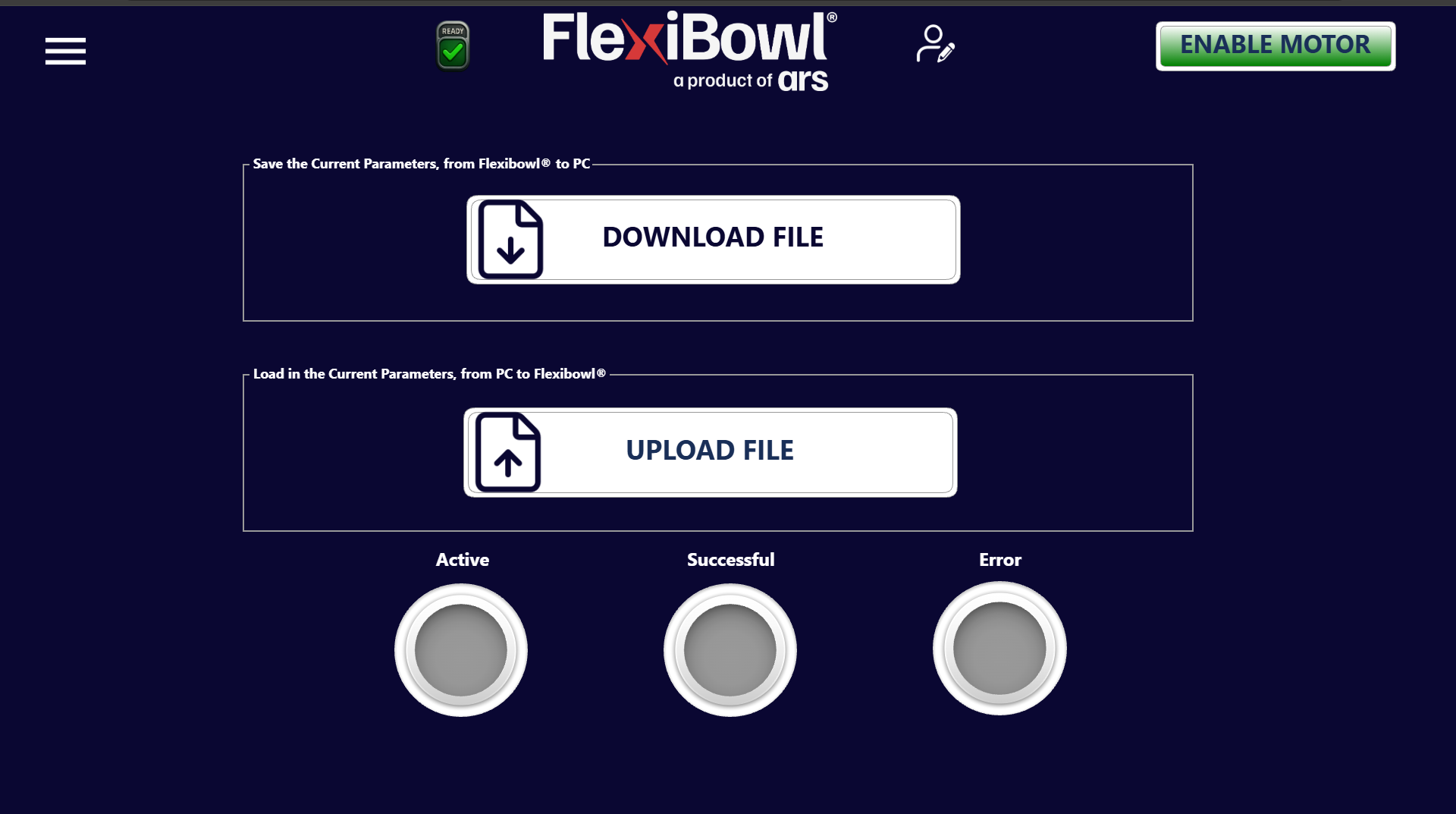
The File Transfer page allows the complete FlexiBowl® parameter configuration to be exported and imported, transferring the data between the system and a PC. It is the function dedicated to backing up and restoring the operating configuration.
Available functions#
DOWNLOAD FILE — Saving parameters (FlexiBowl® → PC)#
The upper panel, labeled “Save the Current Parameters, from FlexiBowl® to PC”, allows all the parameters currently configured in the system to be exported to a file.
When the DOWNLOAD FILE button is pressed, the software generates a configuration file and makes it available for saving on the connected PC.
Tip
Perform a DOWNLOAD FILE before any significant change to the operating parameters. The downloaded file is a complete backup of the configuration and allows the previous state to be restored quickly in case of error.
UPLOAD FILE — Loading parameters (PC → FlexiBowl®)#
The lower panel, labeled “Load in the Current Parameters, from PC to FlexiBowl®”, allows a previously saved configuration file to be imported into the system.
Pressing the UPLOAD FILE button opens the operating system’s file selector. Once the file has been selected, the parameters are loaded into the FlexiBowl® and applied immediately.
Warning
Loading a configuration file overwrites all the current parameters of the system. Make sure that the selected file is compatible with the FlexiBowl® model in use and with the installed software version before proceeding.
Warning
Do not switch off the system and do not interrupt the connection during file transfer. An interruption during the upload could result in an incomplete or corrupted configuration.
Transfer status indicators#
At the bottom of the page there are three indicator lights (virtual LEDs) that signal the outcome of the transfer operation.
Indicator |
Active color |
Description |
|---|---|---|
Active |
🟡 Yellow |
The transfer is in progress |
Successful |
🟢 Green |
The transfer completed successfully |
Error |
🔴 Red |
An error occurred during the transfer |
Note
During a download or upload operation, wait for the Successful LED to light up before proceeding with other operations. If the Error LED lights up, check the connection to the PC and repeat the operation.