

Setup#
Overview#
The Setup page groups the network and communication settings of the FlexiBowl®. It allows the device’s IP address and the type of communication protocol with the external system (e.g. PLC or supervisory PC) to be configured, and the connection status to be monitored in real time.
At the top right, the installed firmware version is shown (in the example: 1.0.2).
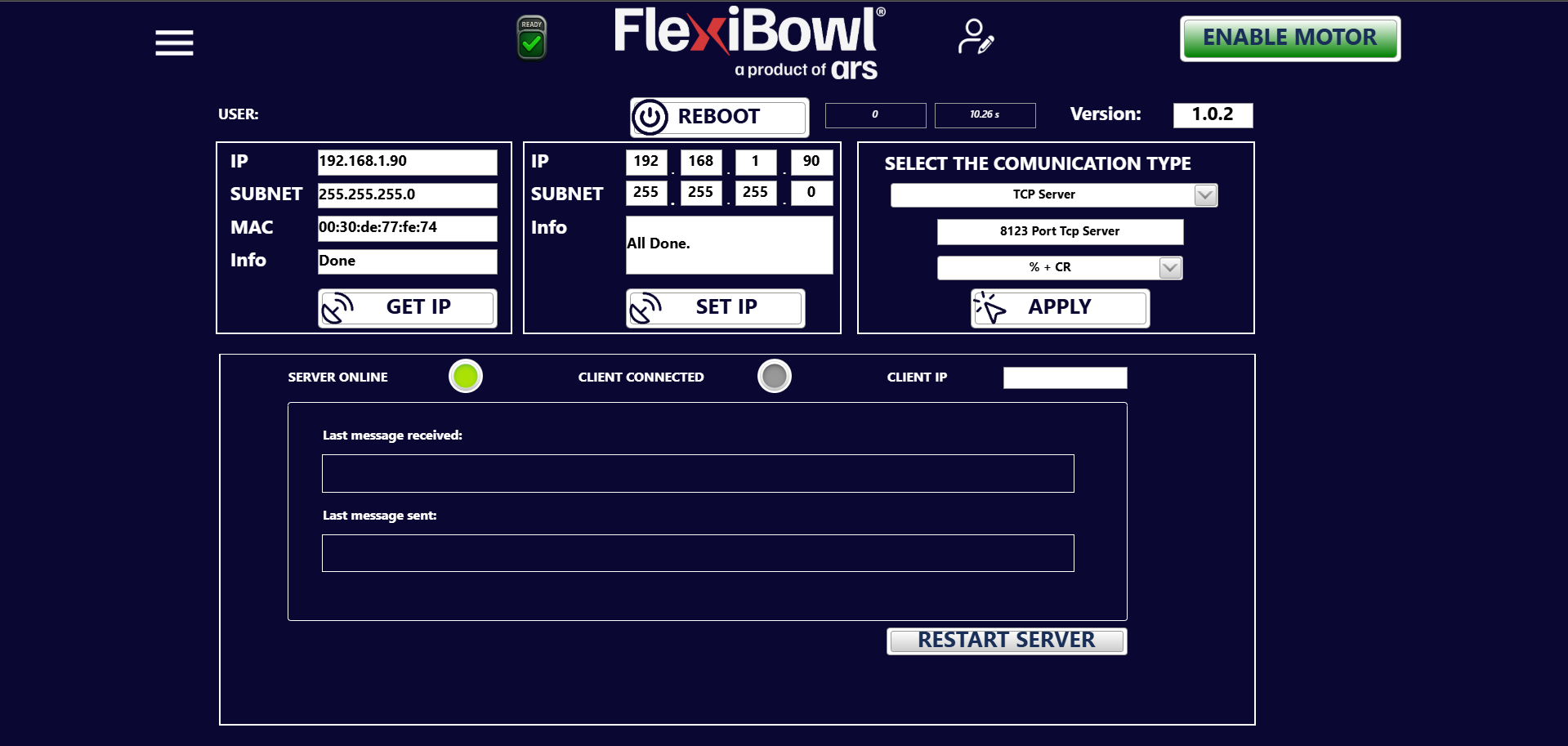
Top bar#
Element |
Description |
|---|---|
Menu (☰ icon) |
Opens the navigation menu between the software pages |
READY |
Device status indicator: signals that the FlexiBowl® is ready for use |
USER |
Indicates the user currently connected to the software interface |
REBOOT |
Restarts the FlexiBowl® software without switching off the system |
Version |
Version of the firmware currently installed on the device |
ENABLE MOTOR |
Enables power to the FlexiBowl® motor. With the motor disabled, the device performs no movement |
Warning
The REBOOT button temporarily interrupts all operations in progress. Do not reboot during an active sequence or during a file transfer.
Warning
Before pressing ENABLE MOTOR, make sure the area around the FlexiBowl® is clear: enabling the motor makes the device ready to move.
GET IP panel#
The left panel displays the network parameters currently assigned to the FlexiBowl®.
Field |
Example value |
Description |
|---|---|---|
IP |
192.168.1.90 |
Current IP address of the device |
SUBNET |
255.255.255.0 |
Current subnet mask |
MAC |
00:30:de:77:fe:74 |
MAC address of the device’s network card |
Info |
Done |
Result of the last read operation |
The GET IP button updates the fields by reading the network parameters currently configured on the device.
SET IP panel#
The central panel allows the IP address and the subnet mask of the FlexiBowl® to be changed.
Field |
Example value |
Description |
|---|---|---|
IP |
192.168.1.90 |
New IP address to assign to the device (can be entered octet by octet) |
SUBNET |
255.255.255.0 |
New subnet mask to assign |
Info |
All Done. |
Result of the last set operation |
The SET IP button applies the entered values and saves them in the network configuration of the device.
Important
After changing the IP address with SET IP, the system must be REBOOTED for the changes to take effect. The software will need to be reconnected to the new IP address.
Warning
Make sure that the new IP address is not already in use by another device on the same network, to avoid address conflicts that could make the FlexiBowl® unreachable.
SELECT THE COMMUNICATION TYPE panel#
The right panel allows the communication protocol between the FlexiBowl® and the external system (PLC, supervisory PC, vision system) to be configured.
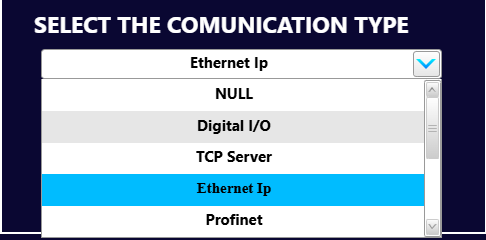
Field |
Description |
|---|---|
Communication type |
Selected communication protocol. Can be selected from the drop-down menu |
Port |
TCP port on which the FlexiBowl® listens as a server |
Termination string |
Character or sequence of characters that delimits the exchanged messages. Can be selected from the drop-down menu |
The APPLY button confirms and applies the selected communication settings.
Note
The TCP Server mode indicates that the FlexiBowl® acts as the server: it is the external system (client) that must initiate the connection to the configured IP address and port.
Tip
Check that the configured port (e.g. 8123) is not blocked by a firewall on the PC or in the company network. In case of connection problems, consult the IT manager.
Selecting the termination string#
The third drop-down menu of the SELECT THE COMMUNICATION TYPE panel is used to choose the terminator of the messages exchanged with the external system, i.e. the sequence of characters that signals the end of each command sent and each response received.
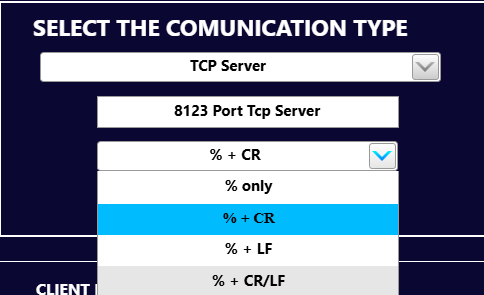
Option |
Terminator |
Description |
|---|---|---|
% only |
|
Only the |
% + CR |
|
|
% + LF |
|
|
% + CR/LF |
|
|
After selecting the desired option, press APPLY to make the setting effective.
Important
The selected termination string must match the one expected by the external system (PLC, supervisory PC or vision system). If the two settings do not match, the commands sent are not recognized and communication fails, even with the server online and the client connected.
Tip
If commands appear to be sent but receive no response, check the Last message received field in the status panel: if the message arrives but has no effect, the cause is often an incorrect termination string.
Communication status panel#
The lower panel shows in real time the status of the connection between the FlexiBowl® and the external client.
Status indicators#
Indicator |
Active color |
Description |
|---|---|---|
SERVER ONLINE |
🟢 Green |
The FlexiBowl® TCP server is active and listening |
CLIENT CONNECTED |
🟢 Green |
An external client is currently connected to the server |
CLIENT IP |
— |
IP address of the currently connected client |
Note
When an indicator is grey, the corresponding condition is not met: in the example the server is online but no client is connected yet.
Message monitor#
Field |
Description |
|---|---|
Last message received |
Last message received from the external client |
Last message sent |
Last message sent by the FlexiBowl® to the client |
Note
The message monitor is useful during integration and debugging of the communication with the external system. The messages shown follow the FlexiBowl® communication protocol; refer to the protocol documentation for the complete list of available commands.